Hi @metaphysician
and welcome back to CsoundUnity!
This is a very interesting project, I’m currently working on a very similar one! I will publish it on GitHub soon 
Regarding the issues, two things:
-
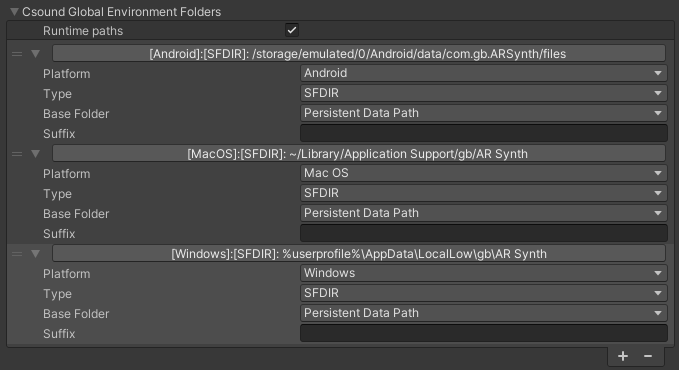
to be able to find the .sf2 files and avoid the crashes, you will have to let CsoundUnity know where to look for those soundFont files. From version 3.2 we added the Environment Vars. You have to add the folders where you want to look for them (for each platform), something like this:
-
There are issues with soundFont files on Csound for Android, and it’s not something directly related with CsoundUnity, see: this thread. I will open an issue on Csound GitHub after I will be able to test them on Csound Android (yesterday I tried and I wasn’t able to build the project
 )
)
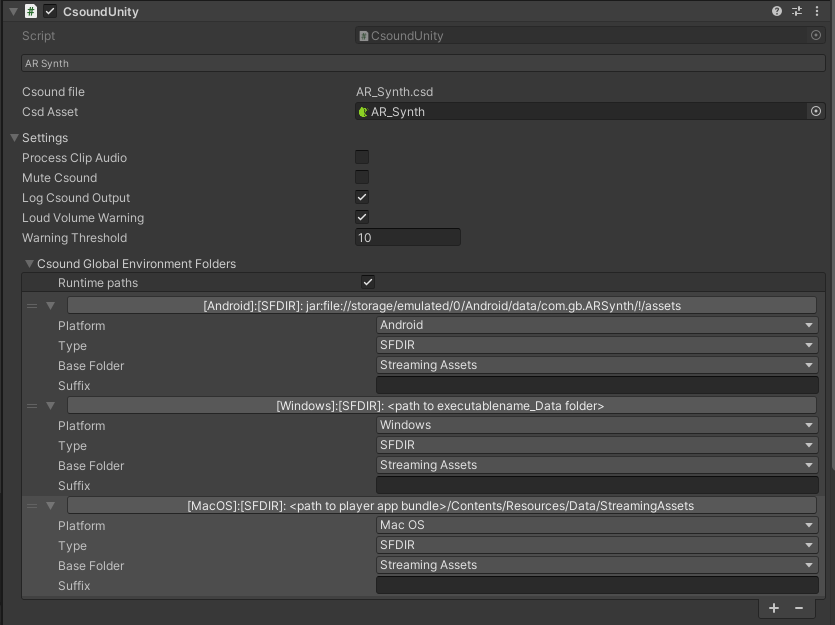
EDIT: I just remembered that the StreamingAssets folder won’t work on Android, since it’s still a compressed folder, hence Csound cannot access it directly (usually you would use a WebRequest to load files from it on Unity Android). That’s why to let Csound load files from the SFDIR we have to rely on the PersistentDataPath folder instead. This means that you will have to copy the files there before Csound is started.
Have a look at the EnvironmentVars sample to find a way to copy files there. To make it short: place your .sf2 files in a Resources folder, rename them as .bytes, load them with Resources.Load then read and write the bytes at the destination path (dir below is a path inside the PersistentDataPath)
                var destinationPath = Path.Combine(dir, sfName + ".sf2");
                if (!File.Exists(destinationPath))
                {
                    var sf = Resources.Load<TextAsset>(sfName);
                    Debug.Log($"Writing sf file at path: {destinationPath}");
                    Stream s = new MemoryStream(sf.bytes);
                    BinaryReader br = new BinaryReader(s);
                    using (BinaryWriter bw = new BinaryWriter(File.Open(destinationPath, FileMode.OpenOrCreate)))
                    {
                        bw.Write(br.ReadBytes(sf.bytes.Length));
                    }
                }
Then activate CsoundUnity after the copy is completed!
so the Environment Settings in the above image should be this instead: